Getting Started
JTB Batch Change brings the AutoCAD ActiveX Object Model to your command via Excel design spreadsheets. Some examples of feature commands are:
- You can rename layers in hundreds of drawing by substituting text "Concrete" with "CONC", or add a prefix of "AC " to each layer's name.
- You can import and update all blocks from a standard drawing to hundreds of other drawings.
- You can replace all inserted blocks "DOOR-BD3" in layer "Archs" with block "DOOR-AC1", and move them to layer "ARCH-FURN"
- You can change all texts whose styles are not prefixed with "ELEC" to "ELEC Standard" style, then change all block's attributes whose tag is "DATE" to current date.
- You can convert all your inserted blocks from dynamic to static, or to anonymous blocks.
- You can flatten all your drawing objects by setting all Z coordinates to 0.
- Additionally, you can perform Batch Audit and Purge.
And many more.
Open JTB Batch Change.xls Microsoft Excel Macro Enabled workbook in the application install folder
(at %appdata%\Autodesk\ApplicationPlugins\JTB Batch Change\Contents), you will find 7 spreadsheets:
- The first one is The Drawing List: your selected drawings will be listed here
- The last one is the Help worksheet: this is where you find your license key and help page links.
The rest are 5 working spreadsheets:
- Rename spreadsheet: help you rename Drawings, Blocks, Layers, TextStyle etc. in selected drawings.
- Find and Replace spreadsheet: find texts in AutoCAD Texts, MTexts, Dimensions, Attributes and Table, then replace it with other texts.
- DwgProps spreadsheet:
- Change drawing properties
- Add or remove custom drawing properties
- Import spreadsheet: import Blocks, Layers, TextStyles, Linetypes, DimStyles and/or PageSetups from standard drawing to your selected destination drawings.
Current definitions in destination drawing will be overrided.
Note: If your source linetype contains shape, you should have the shape definition .shp file in your AutoCAD support paths.
- Change spreadsheet: This spreadsheet will drill deeper in to object properties to find value and make change.
While working with JTB Batch Change, you can copy the workbook to other locations. Within the workbook, you can copy, delete or rename worksheets.
Usage
This application works best with latest Microsoft Excel version.
To ensure Macros will run, you should give them permission first: Go to Excel Options > Trust Center > Macro Settings > Choose "Enable all macros ..."
Then, the working flow is:
- Goto to Drawing List worksheet. Click "Add Drawings" to selected drawing files. You can collect drawings at various places. They will be listed uniquely in column A and B.
- Open a working spreadsheet and create commands. The start JTB Batch Change.xls contains many example commands tested on sample drawings with instructions. Test your commands first before applying to the real work.
- Select commands on rows, then click "Run". A window will bring up for you to select drawings from drawing list
- Click Run to start the Batch Change process
- At the end, a Log Window will bring up for you to check the performance. All your drawings are backed up before any change is made. If any error happens, you can click "Open Back Up Folder" to restore your drawings.
For more information on how it works, Find and Replace formulas, you can browse these pages:
Screenshots
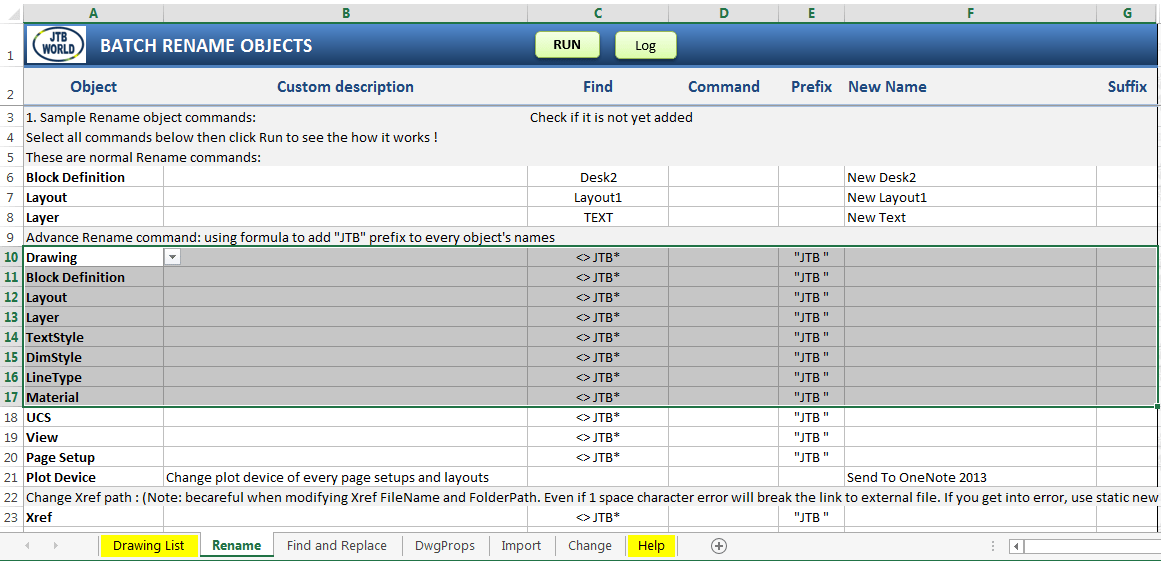 Rename spreadsheet
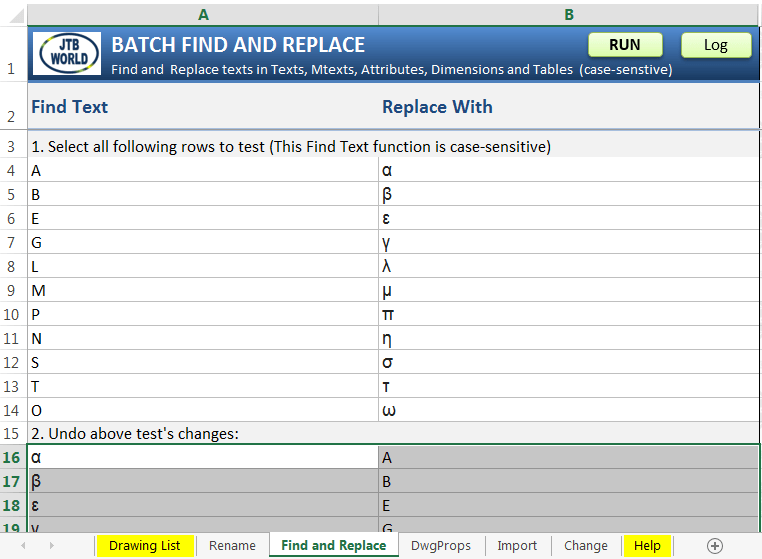 Find and Replace spreadsheet
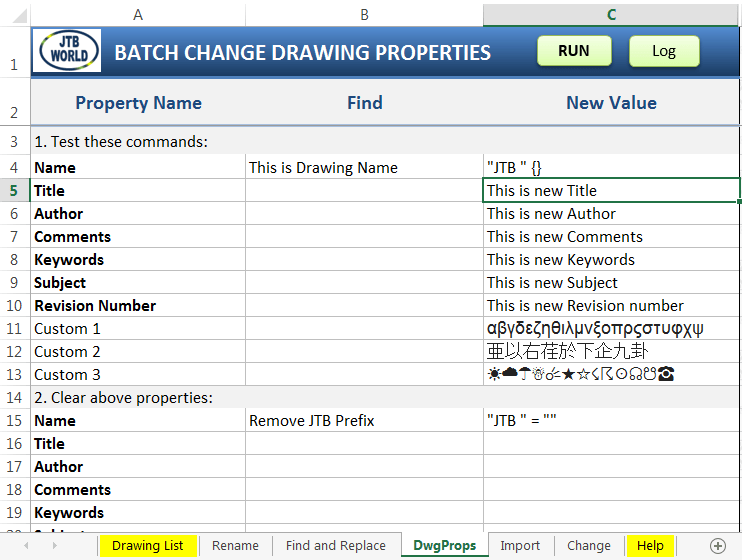 Drawing Properties spreadsheet
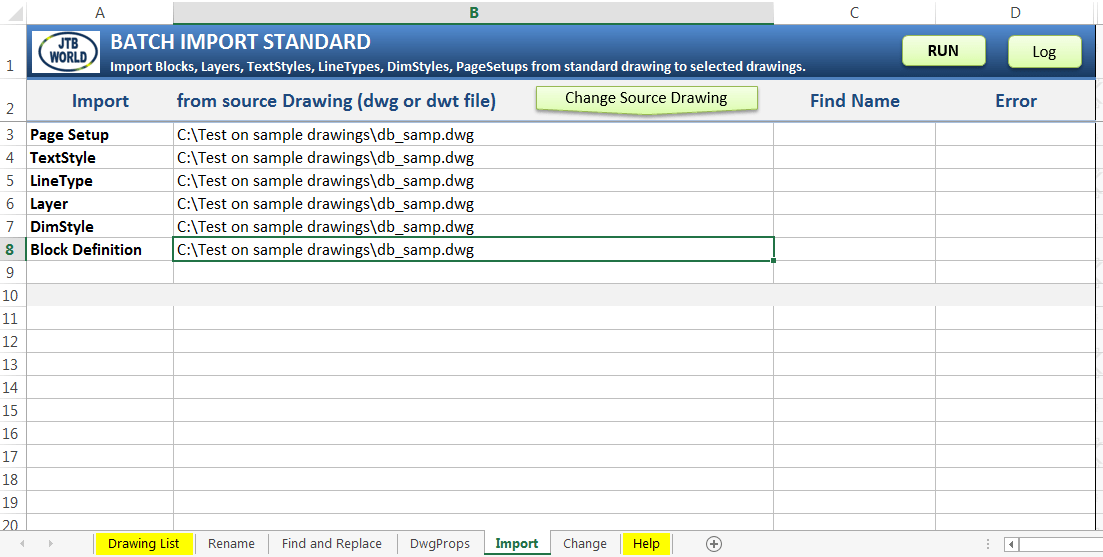 Import spreadsheet
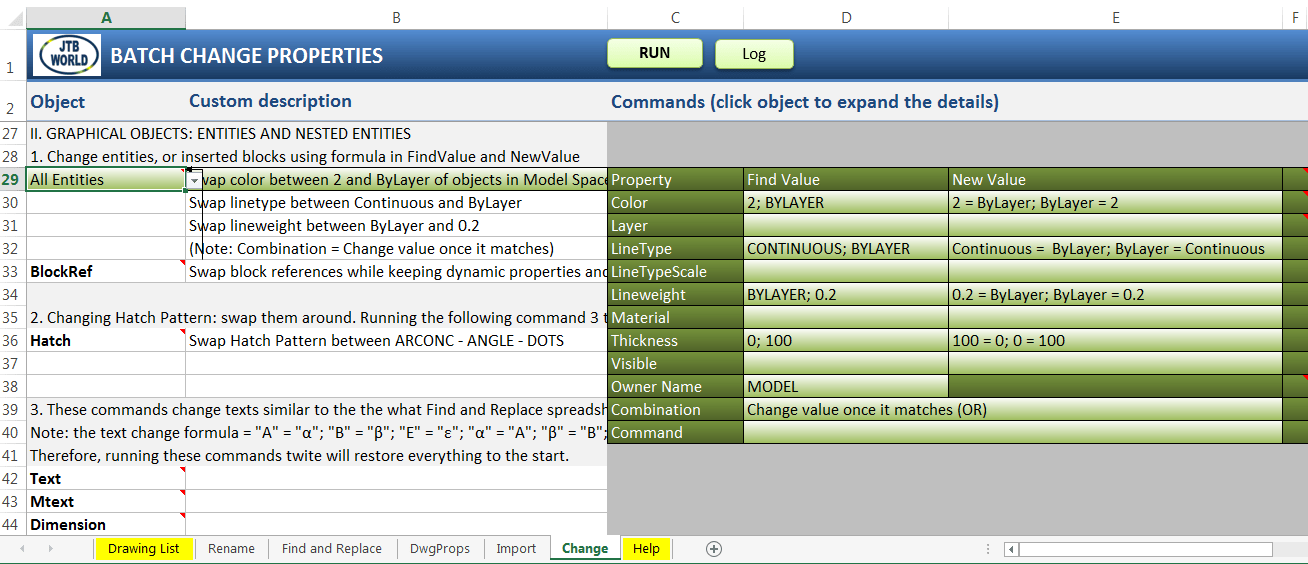 Change spreadsheet
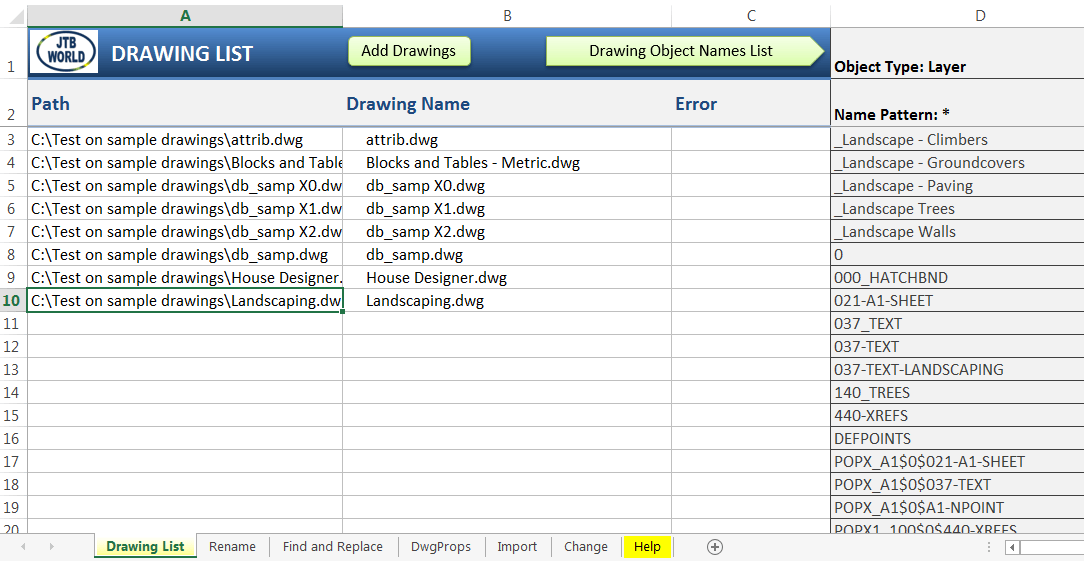 Drawing List
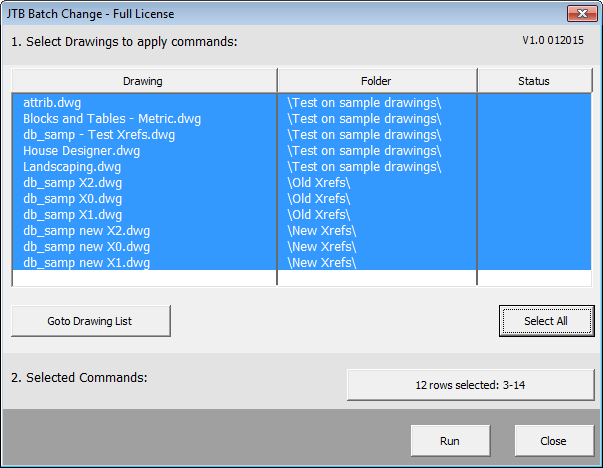 Select drawings and commands to run
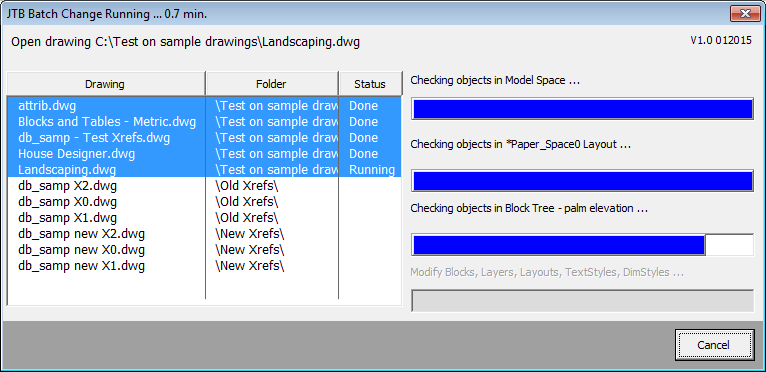 JTB Batch Change is Running
 Log window
Installation and Uninstallation
The installer that ran when you downloaded this plug-in from Autodesk Exchange is a custom installer compiled by JTB World.
To uninstall this plug-in:
1st: You have to manage keep and/or remove files in your BackUp folder manually. You will find them at %AppData%\Autodesk\ApplicationPlugins\JTB Batch Change\Contents\BackUp folder. Here is where all your drawings are saved before being modified.
2nd: Goto Control Panel > Programs > Programs and Features (Windows 7/8/8.1) or Control Panel > Add or Remove Programs (Windows XP), then click uninstall.
License
You can use JTB Batch Change trial license for evolution and educational purpose only. Trial license is limited to work on less than 700 object-drawings (in Model Space).
Open Help worksheet to get your computer ID number. Send that number to JTB World for Activation Code.
Known Issues
While the application is running, please don't try to use AutoCAD. Escape all active commands in AutoCAD and waiting for the process to finish.
Version History
1.0
Initial Release: April 2015

